Live Rewind and Siri Recap Come to Apple Watch Series 12 and Ultra 4 in the watchOS 27.3 Developer Beta
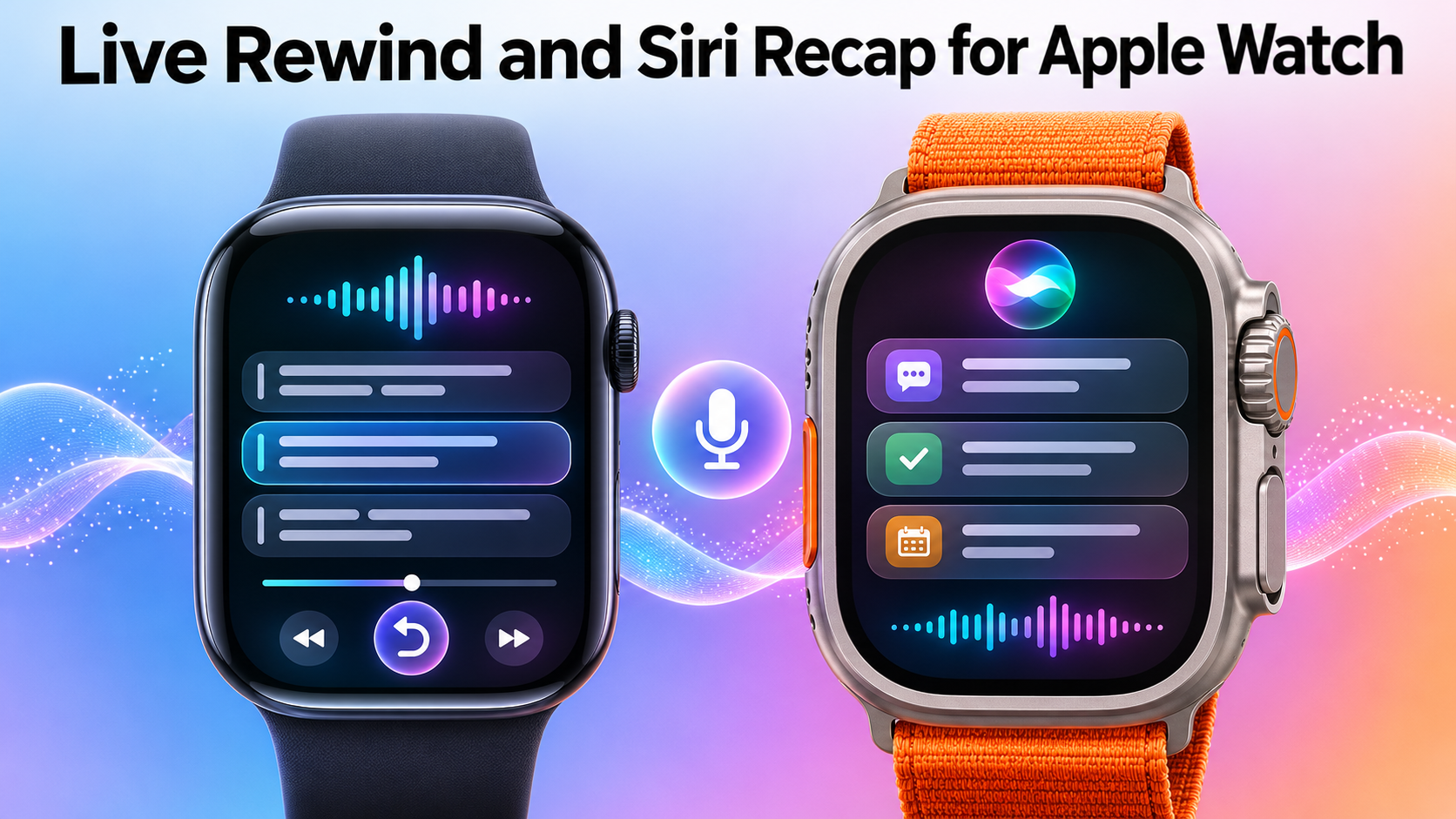
Apple is adding two more microphone-based features to the Apple Watch Series 12 and Watch Ultra 4: Live Rewind and Siri Recap. Both show up in the first watchOS 27.3 developer beta. They matter because they listen to the world around you, so it's worth knowing what they actually do, who can switch them on, and how you stay in control.
Apple unveiled the two watches in September with a set of microphone features it calls Audio Intelligence. Sound Recognition and Music Recognition with Shazam were there from the start. The new pair goes further: one shows what was just said as text, and the other quietly takes notes on your conversations. Both are opt-in, so nothing happens until you choose it.
What Live Rewind does and how to trigger it
Live Rewind is the simpler of the two. Say someone talks and you miss a detail: double-press the Digital Crown and the watch shows what was said in the last 15 seconds as a text snippet. From there you can ask Siri about it or save it to the Siri app. If you do neither, the snippet disappears about 30 seconds after the display dims.
Apple has made it hard to use Live Rewind without anyone noticing. Triggering it plays an audible chime, even in silent mode or with headphones connected. You also get a full-screen animation and a microphone indicator, so people nearby can tell it's been triggered. Live Rewind is processed on the watch itself.
How Siri Recap takes notes on your conversations
Siri Recap works in the background. It ambiently takes notes on conversations throughout the day, and once a conversation ends it generates a title, a short summary and key points. You'll find them in the Recaps tab of the Siri app. It's not a transcript, and it doesn't attribute anything to specific speakers, so don't expect a record of who said what.
Recaps don't pile up forever. They're deleted after seven days unless you save them, and you can export one to Notes or Journal if you want to keep it somewhere more permanent. That makes the seven-day window a good prompt to go through anything worth holding on to.
Who can use Live Rewind and Siri Recap: devices, iPhone, language, age and EU limits
The requirements are fairly tight. You need a Series 12 or Ultra 4 paired with an iPhone 16 or newer, with the iPhone 16e excluded, and that iPhone needs Apple Intelligence and Siri AI. For now the features only work in English, with more languages to follow. They're also off-limits for users under 13.
There's a regional catch too. The features won't initially be available in the EU, because Siri AI isn't available there yet. If you're in the EU, or your current iPhone doesn't meet the list above, you'll be waiting. Apple hasn't given dates for extra languages or EU availability in the information we have.
Moving your data when you switch to a newer iPhone
Because of the iPhone 16 requirement, some people will upgrade their phone before they can try any of this. Moving everything across is the tedious part, and there are a few ways to do it. Smart Transfer is one option: an app for Android and iPhone whose Clone tool handles Data transfer between devices over Wi-Fi, covering pictures, videos, contacts, messages, apps and more. That includes Sms Transfer of your messages, so a new phone doesn't mean starting over.
For single items, the app's Share tools cover File Transfer. Share Nearby sends pictures, videos, music and files to people on the same Wi-Fi, and Share Remotely handles anywhere file transfer by sending files across networks, including to other countries. Clone relies on Wi-Fi for wifi content transfer between phones. Its Storage tool groups WhatsApp media into a folder, which helps when you're clearing space before a whatsapp backup transfer.
How to schedule or turn off Siri Recap from Control Center
You get a fair amount of say over when Siri Recap listens. You can schedule it by time and location, for example only at work or never at night. You can also turn it on or off at any time from Control Center, which is handy if you walk into a conversation you'd rather not have summarized.
A practical approach is to set a schedule that matches your routine, then use the Control Center toggle for the odd exception. Since the feature is opt-in, the first step is simply deciding whether you want it running at all.
How Apple says it handles microphone audio and privacy
Apple's design keeps raw audio in a hardware-isolated Secure Exclave on the S11 chip and on the paired iPhone. Apple describes this as a place the operating system, apps, you and even Apple can't access. Apple also says it never creates any audio recordings. Those are the company's own claims, not something independently verified.
For Siri Recap, a condensed version of the conversation transcript goes to Private Cloud Compute, which creates the summary. Apple says the feature is designed to leave out sensitive information such as financial data and government-assigned identifiers. Note the wording: designed to is an intent, not a guarantee, so it's sensible to glance over a recap before you save or export it.
When Live Rewind and Siri Recap will roll out beyond the developer beta
Right now both features are in the first watchOS 27.3 developer beta, so they're aimed at developers rather than everyday users. GSMArena expects a public beta to come next, before the features reach everyone. No date has been given for that, or for the final release, so treat any timeline you see with caution until Apple says otherwise.
If you own a Series 12 or Ultra 4, check your paired iPhone, language and region first, then decide whether you want these features at all. They're opt-in, schedulable and easy to switch off, so you can try them on your terms once they reach you.


Comments
Post a Comment